TSMADump is a command-line utility that lets you retrieve information about domains, users, auto-responders, and aliases from a SmarterMail server. It outputs plain text files that are perfect for use in batch files.
Download the most recent release here...
https://github.com/bigjosh/TSMADump/releases
Note that you need to have Microsoft .NET 2.0 installed to run TSMADUMP.EXE. All SmarterMail servers already have this installed because SmarterMail needs it too. If you want to run TSMADUMP on a different machine, you can install .NET 2.0 though Windows Update or download the .NET 2.0 Redistributable directly from Microsoft.
(All example batch files are included in the above zip file)
TSMADUMP DOMAIN http://webmail.test.com admin foobar
Will list all of the domains on the SmarterMail server whose login page is located at webmail.test.com. Note that "admin" must be an authorized host administrator, and "foobar" would be the password for that account.
TSMADUMP /Q /OUsers.csv USER http://webmail.test.com me@test.com
foobean test.com
Will create a file called Users.csv that lists all of the users in the domain josh.com and can be opened directly in Excel. The Note that me@test.com is the domain admin.
TSMADUMP ADDUSER http://webmail.test.com admin@josh.com
foobean jsmith please test.com Joe Smith N
Will add a new user account "jsmith@test.com" with the password "please", first name "Joe", last name "Smith", and he will not have domain admin rights.
TSMADump.exe getuser "https://mailserver.com" admin adminpassword user@example.com
TSMADump (c) 2007 Josh Levine [http://josh.com/TSMA]
A command line utility to dump information from a SmarterMail server.
Syntax:
TSMADump [/oOutputFile] [/c] [/q] command baseURL username password [params]
Where:
/oOutputFile will optionally write the results to the specified file
/c will optionally add commas between output fields
/q will optionally add quotes around output fields
Possible values for 'command' are:
USER
ALIAS
ALIASADDRESS
DOMAIN
USERFORWARD
DOMAINALIAS
USERAUTO
GETUSER
ADDUSER
ADDUSER2
UPDATEUSER2
UPDATEUSERFORWARD
UPDATEUSERFORWARDING2
DELETEUSER
ADDALIAS
DOMAINSETTING
ADDDOMAINALIAS
USERSETTING
DOMAININFO
UPDATEUSERAUTORESPOND
SETCATCHALL
Each command has a variable set of parameters.
Try running:
TSMADump command
for information on that command.
Return codes:
Errorlevel 1 - Success
Errorlevel 0 - Failure
Example usage:
TSMADump /oUsers.txt /q http://mail.test.com test@test.com foo USER test.com
...would create a list of all the users in the domain test.com on the server at
mail.test.com. The list would be written to a text file called users.txt.
Help for commands:
ADDALIAS
--------
Add new alias(es).
Username/password provided must be requested user or domain or system admin.
No output if successfull.
Additional parameters:
Domain - domain to add alias into
Alias - alias name
Address(s) - new destination address, or addresses seporated by semicolons
ADDDOMAINALIAS
--------------
Add a domain alias for a given domain.
Username/password provided must be domain admin or system admin.
Additional parameters:
Domain - the name of the domain to add alias to
Alias - new alias to add
ADDDOMAINEX
-----------
Creates a new domain using the system's default domain settings.
Username/password provided must be domain admin or system admin.
Additional parameters:
DomainName - The name of the domain name to add, in the format 'example.com'.
Path - The full path of the location in which the domain data should be stored.
PrimaryDomainAdminUserName - The username for the domain administrator.
PrimaryDomainAdminPassword - The password for the domain administrator.
PrimaryDomainAdminFirstName - The first name for the domain administrator.
PrimaryDomainAdminLastName - The last name for the domain administrator.
IP - The IP Address on which the domain should listen.
ADDUSER
-------
Add a new user.
Username/password provided must be requested user or domain or system admin.
No output if successfull.
Additional parameters:
UserName - new user name
Password - Password for new user
Domain - domain to add user into
FirstName - new user's first name
LastName - new user's last name
IsDomainAdmin - is this user a domain admin (Y=new user is a domain admin)
ADDUSER2
--------
Add a new user.
Username/password provided must be requested user or domain or system admin.
No output if successfull.
Additional parameters:
UserName - new user name
Password - Password for new user
Domain - domain to add user into
FirstName - new user's first name
LastName - new user's last name
IsDomainAdmin - is this user a domain admin (Y=new user is a domain admin)
MaxMailboxSize - new user's max mailbox size in MB
ALIAS
-----
Dump all aliases in a domain.
Username/password provided must be either domain or system admin.
Outputs line for each alias in the domain, each line has the fields...
Alias
Additional parameters:
Domain - the name of the domain or domain alias to list
ALIASADDRESS
------------
Dump all the target email addresses for a given alias in a domain.
Username/password provided must be either domain or system admin.
Outputs line for each address listed in the alias, each line has the fields...
Alias TargetAddress
Additional parameters:
Domain - the name of the domain or domain alias to list
AliasName - the name of the alias to list
DELETEUSER
----------
Delete a specific user.
Username/password provided must be requested user or domain or system admin.
No output if successfull. No error if user not found.
Additional parameters:
UserName - the username to delete
Domain - the domain of the username to delete
DOMAIN
------
Dump all domains on the host.
Username/password provided must be system admin.
Outputs line for each domain on the server, each line has the fields...
Domain
Additional parameters:
DOMAINALIAS
-----------
Dump all domain aliases for a given domain.
Username/password provided must be domain admin or system admin.
Outputs line for each domain alias on the server, each line has the fields...
DomainAlias
Additional parameters:
Domain - the name of the domain to ifnd the aliases of
DOMAINSETTING
-------------
Dump the specified setting for the specified domain.
Username/password provided must be domain admin or system admin.
Outputs the requested setting
Additional parameters:
Domain - the name of the domain
Setting - the name of the setting
GETUSER
-------
Get info for a specific user.
Username/password provided must be requested user or domain or system admin.
Outputs line containing the fields...
UserName FirstName LastName Password IsDomainAdmin IsSystemAdmin
Nothing will be output if the specified user is not found.
Additional parameters:
UserName - the email address to get info for
GETUSERSETTINGS
---------------
Gets the value of a specified setting(s) for a given user.
Username/password provided must be requested user or domain or system admin.
Outputs the requested setting(s) if successfull.
Additional parameters:
EmailAddress- email address of requested user
Setting - List of one or more setting keys (names) to get. Multipule settings
should be comma separated.
SETCATCHALL
-----------
Set the catch all alias for a domain.
Username/password provided must be either domain or system admin.
Additional parameters:
Domain - the name of the domain or domain alias to list
AliasName - the name of the catch-all alias
UPDATEUSER2
-----------
Update user info.
Username/password provided must be requested user or domain or system admin.
No output if successfull.
Additional parameters:
UserName - new user name
Password - Password for new user
FirstName - new user's first name
LastName - new user's last name
IsDomainAdmin - is this user a domain admin (Y=new user is a domain admin)
MaxMailboxSize - new user's max mailbox size in MB
UPDATEUSERFORWARD
-----------------
Update forwarding info for a specific user.
Username/password provided must be requested user or domain or system admin.
Specify a forwarding address to enable forwarding.
No output if successful.
Additional parameters:
UserName - the email address to update forwarding info for
Delete - Delete the email after forwarding?
Forward - destination email address to forward to
UPDATEUSERFORWARD2
------------------
Updates the specified user's forwarding settings (Multiple addresses).
Username/password provided must be requested user or domain or system admin.
Specify a forwarding address to enable forwarding.
No output if successful.
Additional parameters:
UserName - the email address to update forwarding info for
Delete - Delete the email after forwarding?
Forward - destination email address(es) to forward to. Multipule addresses
seporated by a semicolon
USER
----
Dump all users in a domain.
Username/password provided must be either domain or system admin.
Outputs line for each user in the domain, each line has the fields...
UserName Password IsDomainAdmin IsSystemAdmin FirstName LastName
Additional parameters:
Domain - the name of the domain or domain alias to list
USERAUTO
--------
Get auto response info for a specific user.
Username/password provided must be requested user or domain or system admin.
Outputs line containing the fields...
Address AutoResponseEnabled
Nothing will be output if the specified user is not found.
Additional parameters:
UserName - the email address to get autoresponse info for
USERFORWARD
-----------
Get forwarding info for a specific user.
Username/password provided must be requested user or domain or system admin.
Outputs line containing the fields...
Address ForwardingEnabled DeleteOnForward ForwardingAddress
Nothing will be output if the specified user is not found.
Additional parameters:
UserName - the email address to get forwarding info for
USERSETTING
-----------
Dump the specified setting for the specified user.
Username/password provided must be domain admin or system admin or the requested
user.
Outputs the requested setting
Additional parameters:
Address - email address of the user
Setting - the name of the setting
I had a problem with Yahoo rejecting emails from my mail server. It turns out that when Yahoo sees a SPAM-looking email coming from a server, they mark a strike against that server. Enough strikes and you are bared. I had a bunch of users who were forwarding their emails (spam and all) to their Yahoo accounts, so I was racking up strikes. I needed a way to find all these users and tell them to stop forwarding their emails to Yahoo and use Yahoo's POP3 downloaded instead.
I used this batch file to generate a list of all the users on my server that had forwards or aliases pointed to Yahoo.com (this file is included in the downloaded ZIP file). It first uses the DOMAIN command to dump all the domains on the server, then iterates though all the domains using the USER command to get a list of users in each domain, then it iterates over that list of users the dump all the forwards for each user with the FORWARD command. Next, it goes back over the list of all domains and grabs all the aliases with the ALIAS command. Finally it extracts all the destination addresses out of the list and filters only those that contain "@yahoo.com". Then this listed is displayed with NOTEPAD so you can easily cut and paste it.
Then I copied the result list out of NOTEPAD and pasted it into the BCC field on my GMAIL account and sent them all a nice email saying...
|
Dear gentle josh.com email user, You currently have your josh.com account or alias forwarding to your Yahoo account. This is bad because spams get forwarded to the Yahoo servers from the josh.com server and then Yahoos thinks josh.com is a spammer and will not accept mail from josh.com. Because of this, it is likely that you are not getting some (or most) of your forwarded email. Rather than setting up forwards *TO* Yahoo, it is better to set up your Yahoo account to grab your emails from *FROM* my server, and then delete the forward. This is easy to set up in Yahoo... http://help.yahoo.com/us/tutorials/mail/mail/ext__access1.html I'd like to get this fixed as soon as possible since it causes other bad problems besides just you not getting your forwarded email. Let me know if you have any questions. Thanks! -josh |
Note that I sent this email using GMAIL and sent it directly to the users' Yahoo addresses. If I had sent it using my SmarterMail server, or sent it to their account on my SmarterMail server, it is likely they would not get it because Yahoo is currently rejecting emails from my server (the whole point of this exercise). I used the BCC field rather than the TO just to keep all the people from seeing each other addresses, and potentially doing a REPLY TO ALL and annoying everyone else.
There are also several sample batch files included in the distribution ZIP.
Q: Do I have to be the host administrator to user TSMADUMP?
A: No, each command requires an appropriate security level. So, for
example, to get a list of all domains with the DOMAIN command, you must be the
host admin, but to get a list of all the users in a given domain with the USER
command, you need only be the admin of the requested domain, and even a normal
user can user the FORWARD command to list the forwards associated with their own
account. Note that a host admin can do anything that a domain admin or user can
do, and a domain admin can do anything that a user in that domain can do.
Q: How can I get a list of all the accounts on my server?
A: It is easy, but requires a couple of steps.
tsmadump /odomains.txt domain
	http://mail.test.com admin
	foobar
...replacing the URL, admin, and foobar with the URL of your webmail server, and and admin username and password.
This will create a file called domains.txt that has all the domains in it.
for /f %i in (domains.txt)
	do tsmadump /ousers-%i.txt user
http://mail.test.com
	admin foobar %i
COPY users-*.txt allusers.txt
All done! You can now load allusers.txt into Excel or some other program.
Q: Do I need to run TSMADUMP on the same machine that is running
SmarterMail?
A: No, TSMADUMP uses standard HTTP to access the SmarterMail server, so
any machine that can log into the SmarterMail webmail can also run TSMADUMP.
TSMA
Q: How do I find out what URL to use to access my SmarterMail
server with TSMADUMP?
A: You just use the same URL that you would use if you were going to log
into the SmarterMail webmail system and check your email. If you are running
TMSADUMP on the same machine as a freshly installed copy of SmarterMail, that
URL would likely by http://127.0.0.1:9998 ,
which points to the default SmarterMail internal web server.
Q: How do I find out what all the commands do?
A: Just enter TSMADUMP followed by the command and you'll see help for that
command. For example, entering TSMADUMP ALIAS will
display help on the ALIAS command which lets you dump all the aliases for a
domain.
Q: How does the return value work?
A: This is the value that the DOS errorlevel variable is set to when
TSMADUMP finishes. You
can check this value in a batch file. Here is an example of a DOS batch file
that will attempt to dump all the users in the domain josh.com into a text file
name joshusers.txt, then check to see if it was successful...
@echo Try to dump users
@TSMADUMP /ojoshusers.txt USER
http://webmail.josh.com admin foobar josh.com
@if errorlevel 1 goto done
@echo ***** ERROR!!! DUMP DID NOT SUCCEED !!!!
:done
Q: Why would TSMADUMP fail to execute successfully?
A: The most likely reasons are...
In each case, you should see an error message explaining what went wrong.
Q: How can I process a whole set of users in a batch file?
A: The
MS-DOS FOR /F command is very handy for processing
text files that contain lists of items, like those files produced by TSMADUMP.
It will iterate though each line in a text file and run a command or set of
commands on each line. It even lets you parse out the fields in each line.
So, here is an example of a few lines you could type at a command prompt that would generate a list of all the admin users in a given domain...
TSMADUMP /Ousers.txt USER
http://mail.test.com admin foobar USER

for /f "tokens=1,3" %i in (users.txt) do if "%j"=="True" echo %i >>admins.txt

type admins.txt
The first line connects to the SmarterMail server and gets all of the users saves them in the file users.txt. Each line in users.txt looks like this...
guy@test.com foobar False False Guy Tralane
We are interested in the first field (the username) and the third field (are they a domain admin?).
The for /f "tokens=1,3" %i in (users.txt) do will run though the
users.txt file and do whatever is after the do on each
line.
The "tokens=1,3" %i will grab the 1st and 3rd fields from each
line and assign them to the variables %i and %j.
The if "%j"=="True" echo %i >>admins.txt tests the 3rd field to
see if it is true (meaning that this person is a domain admin), and if it is, it
will print the 1st field (their username) onto the end of the admins.txt file.
Finally, the type admins.txt lists all the users that were
printed into the admins.txt file.
You can even nest for loops, so this gnarly command (yep, it is one long line)...
tsmadump /odomains.txt domain http://mail.test.com admin foobar & (for
/f %i in (domains.txt) do (tsmadump /ousers.txt user

http://mail.test.com admin foobar %i & (for /f "tokens=1,3" %j in (users.txt) do

if "%k"=="True" echo %j >>admins.txt))) & type admins.txt
...would print a list of all the admin users in all domains. Once things start getting this complicated, it is probably better to use a batch file to keep the program flow clean. Here is the same functionality in a batch file..
tsmadump /odomains.txt domain http://mail.test.com admin foobar
for /f %%i in (domains.txt) do (
tsmadump /ousers.txt user http://mail.test.com admin
foobar %%i
for /f "tokens=1,3" %%j in (users.txt) do (
if "%%k"=="True" echo %%j >>admins.txt
)
)
type admins.txt
...The only real difference here is that you can use multiple lines and variables must have two percent signs in from of them inside a batch file.
Q: Can I use TSMADUMP to import a bunch of users from a
spreadsheet file?
A: Yes, check out the NEWUSERS.BAT file included in the
TSMADUMP.ZIP file for an example.
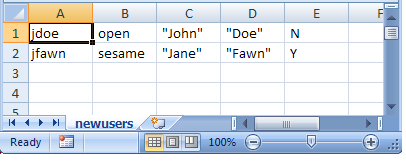
The file NEWUSERS.CSV is an example spreadsheet that contains info for two new users to add. It looks like this...
There is one line for each user to add. Each line has the new username, the new password, the first name, the last name, and a flag indicating if the new user should be a domain admin.
If you ran the following from the command line...
NEWUSERS.BAT newusers.csv http://mail.test.com admin@test.com foobar
test.com
It would automatically add the users from the CSV on the specified SmarterMail server (assuming you replace the info with your server's URL, admin username/pass, and domain name).
When the batch file is complete, and users that could not be added will be listed in FAILS.CSV. You can then copy FAILS.CSV to newusers.csv and repeat the attempt to add these failed users until successful.
Q: How much does TSMADUMP cost?
A: TSMADUMP is free. I do ask that you do not redistribute it- instead, please
send people to this webpage so they can download it themselves. It would also be
great if you could send an email to me at the support address below so that I can let you know about any updates to the
program.
If you really love TSMADump, you can express your gratitude though a tax-deductible donation of any size to my favorite charity, The Aasha Foundation. They spend zero on administration and fundraising, so every dollar you give goes directly to helping the orphans.
Q: What is your relationship to SmarterTools, makers of SmarterMail?
A: None, except that I am a user of their program. I was able to write this utility because they provide public documentation for their web-services API, which I think adds real value to their product.
Q: We have a separate MX server from our SmarterMail mail server, to cut down on the overhead of the mail server, Before allowing the mail through we want to check for a valid user in a text file of all user id in domains or domain alias. Is there a way for TSMADump to create a text file of all users for all domains and domain alias’s from SmarterMail?
A: Check out the AllLogin.bat batch file in TSMADUMP.ZIP. It will generate a file called RESULTS.TXT that contains every possible valid email address (that is user@domian.com, useralias@domain.com, user@domainalias.com, and useralias@domainalias.com) for the specified SmarterMail server. Note that it does not try to process catch-all aliases for obvious reasons.
Q: I am trying to use the web services using the SM api myself and struggle with it. Would you be able to help me understand how to use it?
A: Here is a solution file for Visual C# Express that shows a very simple example program that will get a list of all domains on a server. Just run the SM_API_Example.EXE to see how it works.
Q: How does the DOMAINSETTING command work?
A: Well, if you wanted to find out if a domain is enabled or not, you could run the line...
tsmadump domainsetting http://mail.test.com admin foobar test.com
isenabled
and if the domain "test.com" was enabled, it would output...
isenabled=true
Q: How do I set the subject and body part with UPDATEUSERAUTORESPONDER?
A: Just put quotes around the values like this...
TSMADUMP UPDATEUSERAUTORESPONDER
http://mail.foo.com admin foobar test@foo.com
Y "Important Autoresponse!" "Dear Sir or Madam, I am on vacation and can not be
bothered. Bye"
Q: What settings are available with the DomainSettings command?
A: In SmarterMail 5.0, these settings are available (based on the SmarterMail automation documentation)...
altsmtpport (Alternate SMTP Port)
altsmtpportenabled (Enable Alternate SMTP Port)
autoresponderrestriction (Limit auto responders to once per day per sender)
bypassgreylisting (Bypass Greylisting)
catchall (Name of the catch all alias)
domainurl (Logout URL)
enablecatchalls (Enable Catch Alls)
enabledomainkeys (Enable Domain Keys signing)
enableemailreports (Enable Email Reports)
enablepopretrieval (Enable POP Retrieval)
imapport (IMAP Port)
isenabled (Domain enabled)
ldapport (LDAP Port)
listcommandaddress (List Serv Command Address)
maxaliases (Maximum Aliases, 0=unlimited)
maxdomainaliases (Maximum Domain Aliases, 0=unlimited)
maxlists (Maximum Mailing Lists, 0=unlimited)
maxmessagesize (Maximum Message Size, 0=unlimited)
maxmessagesperhour (Maximum messages allowed per hour)
maxmessagesperhourenabled (Enable Max Messages Throttling)
maxsmtpoutbandwidthperhour (Maximum bandwidth usage allowed per hour (MB))
maxsmtpoutbandwidthperhourenabled (Enable Max Bandwidth Throttling)
maxrecipients (Maximum Recipients per Message, 0=unlimited)
maxsize (Maximum Domain Size (KB), 0=unlimited)
maxusers (Maximum Users, 0=unlimited)
popport (POP Port)
requiresmtpauthentication (Require SMTP Auth)
serverip (IP address)
sharedcalendar (Enable Shared Calendars)
sharedcontact (Enable Shared Contacts)
sharedfolder (Enable Shared Folders)
sharednotes (Enable Shared Notes)
sharedtasks (Enable Shared Tasks)
sharedgal (Enable Global Address List)
showcalendar (Enable Calendaring)
showcontacts (Enable Contacts)
SmarterMail 5.x Automation with Web Services Page 12
showcontentfilteringmenu (Enable Content Filters)
showdomainaliasmenu (Enable Domain Aliases)
showdomainreports (Enable Domain Reports)
shownotes (Enable Notes)
showuserreports (Enable User Reports)
showtasks (Enable Tasks)
showlistmenu (Enable Mailing Lists)
showspammenu (Enable Spam Options)
smtpport (SMTP Port)
spamresponderoption (Auto Responder spam restriction: none, low, medium, high)
spamforwardoption (Forward spam restriction: none, low, medium, high)Updates
Q: How would I get the catch-all alias for a given domain?
A: Assuming the mail server was at mail.test.com and you wanted the catch-all
for the domain test.com...
TSMADump.exe DOMAINSEETING https://mail.test.com admin password test.com catchall
Q: How do I list mulitpule addresses for the UpdateUserForward2 command?
A: Seporate with commas like this...
TSMADump.exe UPDATEUSERFORWARD2 http://mail.test.com admin foo josh@test.com N josh@gmail.com;josh@yahoo.com
Q: How do delete all the forwards addresses with the UpdateUserForward2
command?
A: Like this
TSMADump.exe UPDATEUSERFORWARD2 http://mail.test.com admin foo josh@test.com N ""
Q: How do the USERSETTING and GETUSERSETTINGS commands work exactly?
A: These let you get the value of a wide range of user settings based on
the setting's "key" - which is really just a long one word name for the setting.
You can get a list of keys on
this page by scrolling down to the "GetRequestedUserSettings"
section.
For example, this command...
TSMADump.exe USERSETTING http://mail.test.com admin foo josh@test.com isenabled
... will output something like...
isenabled=True
...which means that the user is enabled. The GETUSERSETTINGS does the same thing but for a list of comma seporated keys, so...
TSMADump.exe /Q /C GETUSERSETTINGS http://mail.test.com admin foo josh@test.com isenabled,maxsize,passwordlocked
...might output...
"True" , "238" , "False"
Note that the values have quotes around them becuase we specified /Q and they have commas between them becuase we specified /C .
Q: Where is the source code?
A:
https://github.com/bigjosh/TSMADump/
Q: How can I export a list with the number of users in each domain on my
server as a CSV?
A: Check out the USERSPERDOMAIN.BAT file here.
Run it like this...
USERSPERDOMAIN.BAT https://mail.domain.com admin foo
Where "https://mail.domain.com" is the URL of your mail server, "admin" is the system admin username, and "foo" is the system admin password.
The output will be saved in "results.txt", which is a comma delimited file with one line per domain.
Q: How can I get my user count down? These licence fees are killing me!
A: One very quick trick that worked for me was to convert all accounts that were
being used to forward into aliases (an alias doesn't count against a license).
First do a FINDFORWARDS.BAT to get a list of all the forwards in the domain into results.txt, then (gingerlly) execute these commands...
for /f %1 in (results.txt) do TSMADump.exe DELETEUSER https://mail.domain.com admin password %1 domain.com
for /f "tokens=1,2" %i in (results.txt) do TSMADump.exe ADDALIAS https://mail.domain.com admin password domain.com %i %j
Unfortunately it is nessisary (and a bit scary) to delete the users first since you can not add an alias if a user with the same name exists. If you have a *lot* of these forwars, you could slightly edit the above code to dleet/add the aliases individually so the time that an address is missing is very short.
Q: How else can I get my user count down?
A: I'm thinking about making a tool that would send a "You must click this link
or you account will be deleted!" email to all users. You could send this out
perodicially to prune unused accounts. This is especially nice becuase it
catches (1) forwards to nowhere while still preserving functioning forwards, and
(2) people who set up POP3 pull on another system that they no longer use or
ignore.
Really SmartTools should do this becuase it would be so much easier for them. They could have the link go to a URL on the mail server itself, and the link would go stright to updating a "last verified" field.
Q: How can I find out what groups a user is in?
A: Check out the new GetUserGroupsByUser command. Note that groups are only
supported on Smarter Mail Enterprise servers.
6/11/2007 - First published
6/18/2007 - Added the ADDUSER and ADDUSER2 commands. Fixed download link.
6/25/2008 - Fixed a cut/paste typo that showed an extra "USER" on the sample
ADDUSER command line.
6/26/2008 - Fixed "newuser.bat" to "newuserS.bat" typo in example text.
7/13/2008 - Added example for extracting all valid email addresses.
7/24/2008 - Added GETUSER and USERUPDATE2 commands.
7/25/2008 - Added DELETEUSER command.
9/18/2008 - Added ADDASLIAS command.
9/25/2008 - Added example source code project to show how to make calls to the
SM API.
4/9/2009 - Added the DOMAINSETTING command to fetch individual domain settings.
5/19/2009 - Added support for multiple aliases to ADDALIAS command.
5/19/2009 - Added ADDDOMAINALIAS command.
2/3/2011 - Added UPDATEUSERFORWARDING2 and UPDATEUSERAUTORESPONDER commands.
1/26/2012 - Added another FAQ with *explicit* steps on how to dump all users
from a server.
5/30/2012 - Added new ADDDOMAINEX command to add automatically new domains.
9/18/2014 - Added SETCATCHALL command. Moved source code to GitHub.
11/17/2015 - Added UpdateUserForward2 command.
3/15/2016 - Added AddDomainEx command.
3/24/2016 - Added GetUserSettings command.
6/26/2016 - Added FAQ on how to get the catch-all.
9/20/2016 - Added USERSPERDOMAIN.BAT becuase the number on the web-interface
domains page is sometimes *wrong*! Double check yours! Tricky bastards!
11/17/2016 - Added the GetUserGroupsByUser command. Run help to see parameters.
For support, please email me at...
